
How to Setup IPTV on Smart TV (Samsung Tizen & LG webOS Guide)
Learning How to Setup IPTV on Smart TV allows you to enjoy 25,000+ live 4K channels and on-demand movies directly through your television's native operating system without purchasing an external Firestick or Android TV box. This definitive guide covers installation on Samsung Tizen OS and LG webOS Smart TVs using IBO Player, Smart IPTV, and Nanomid.
⚡ Smart TV Setup Highlights
- Zero Hardware Cost: Install apps directly from the Samsung Apps Store or LG Content Store.
- Top Recommended Player: IBO Player — Easiest MAC address portal activation with full 4K HDR playback.
- Alternative Players: Smart IPTV (SIPTV), Nanomid Player, and SS IPTV.
- Setup Time: Under 4 minutes with your Xtreme HD IPTV M3U playlist URL.
Table of Contents
Understanding Smart TV IPTV Architecture
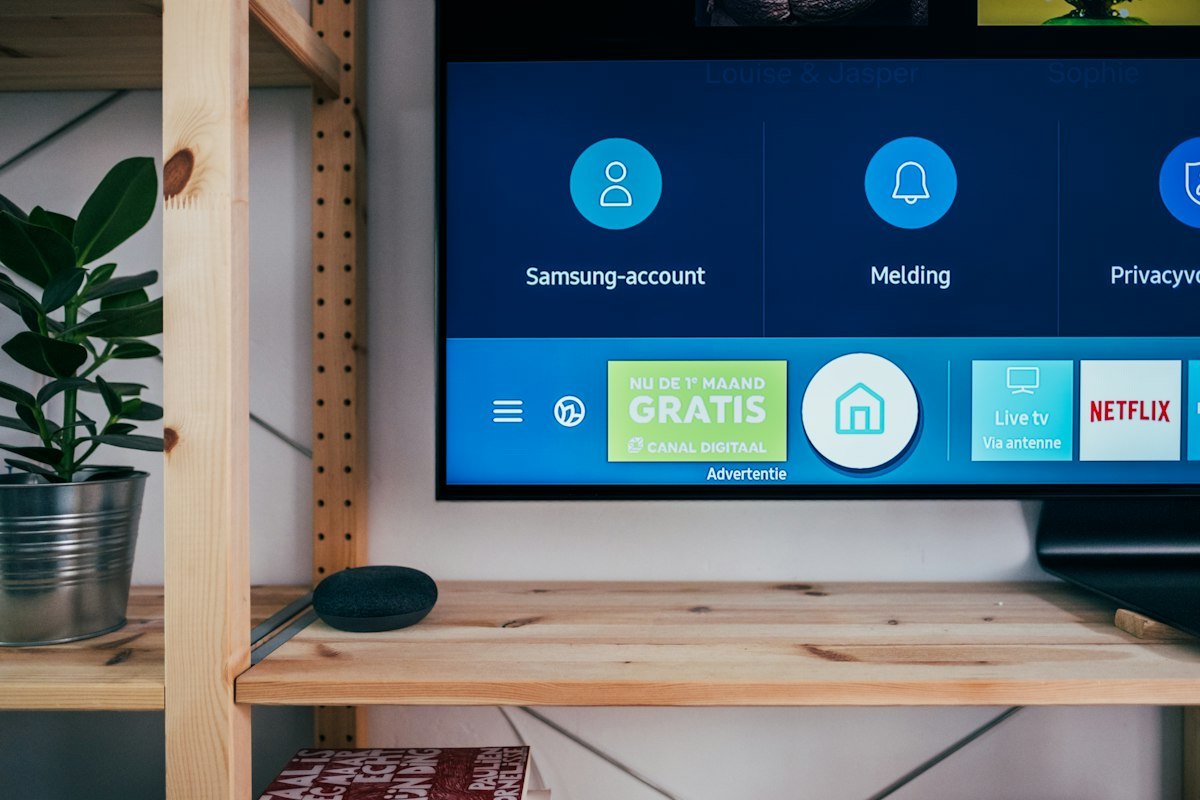
Unlike Android-based media boxes that run APK files, Samsung televisions run Tizen OS and LG televisions run webOS. Both operating systems operate closed app stores. Fortunately, top IPTV media player developers have published native applications directly to both official app stores.
These apps identify your TV through two credentials: a MAC Address (or Device ID) and a Device Key. You simply upload your Xtreme HD IPTV M3U playlist URL to the player's web management portal, and your channels sync automatically to your TV screen.
💡 Instant MAC Address Activation via WhatsApp
Don't waste time typing long M3U URLs using your TV remote. Simply launch IBO Player on your Samsung or LG TV, photograph the TV screen showing your MAC address and Device Key, and send it to our WhatsApp desk. Our engineers will bind your playlist remotely in under 3 minutes.
Method 1: Setup on Samsung Smart TV (Tizen OS)
- Turn on your Samsung Smart TV and press the Home button on your remote control.
- Navigate to the Apps store icon.
- Click the Search icon (magnifying glass) in the top-right corner and type IBO Player (or Smart IPTV).
- Click Install / Download to add the application to your TV home bar.
- Launch the app. On the initial startup screen, note down the Device ID and Device Key displayed on screen.
Method 2: Setup on LG Smart TV (webOS)
- Press the Home button on your LG Magic Remote to launch the webOS menu bar.
- Open the LG Content Store (or LG Apps on newer webOS versions).
- Search for IBO Player or Nanomid Player and select Install.
- Open the app upon completion and record your television's unique MAC Address and Security Key.
Step-by-Step IBO Player Configuration Tutorial
IBO Player is currently the highest-rated player for Samsung and LG TVs because it supports 4K HEVC streams, multi-language subtitles, and automatic EPG synchronization:
- Using a smartphone or computer browser, visit the official IBO Player management website at
iboplayer.com/device/login. - Enter the Device ID and Device Key displayed on your television screen and click Login.
- Click the Add Playlist button.
- Enter a playlist name (e.g.,
Xtreme HD IPTV) and paste your custom M3U Plus URL provided by our WhatsApp support team. - Click Save. Return to your television and press the Reload / Refresh button inside the IBO Player app.
- Your 25,000+ live channels and 60,000+ VOD catalog will populate within 30 seconds!
Optimizing Smart TV Network & Audio Settings
To ensure that your Smart TV streams 4K content with zero buffering:
- Prefer Ethernet: If your TV is located near your home router, connect an RJ45 Ethernet cable to ensure steady bandwidth.
- 5 GHz Wi-Fi Connection: If using Wi-Fi, ensure your television is connected to your router's 5 GHz band rather than the congested 2.4 GHz band.
- Audio Format Passthrough: In your TV's audio settings, set Digital Audio Output to Auto or Pass-through to enable surround sound on movies.
- Buffer Fix: If you notice stream hiccups, review our How to Fix IPTV Buffering Guide.
Need Free Smart TV Setup Assistance?
Send your Smart TV's MAC address to our WhatsApp support team. Our engineers will link your playlist and test your connection in real-time.